
The just-released Safari 3.1 has a new "Develop" menu (check the Advanced tab in Preferences to activate it). I usually rely on Firefox's Web Developer Toolbar for testing and diagnostics -- but preferring Safari as my general browser of choice, I was happy to see some native tools baked-in.
I often run these "bulletproof integrity tests" after finishing an initial design: disabling styles, javascript and images to check for readability and flexibility. Favlets and Firefox extensions have made this easy for years, and Safari's new Develop menu has several of these. Excellent, I said.
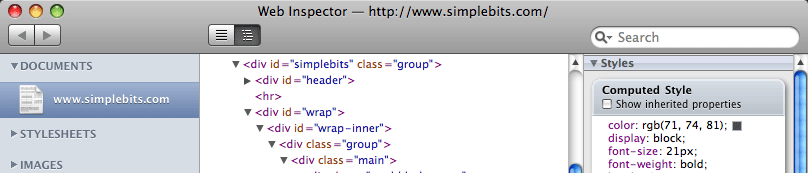
It also ships with a Web Inspector (think Firebug), which allows you to break down a web page by listing it's various files, drilling down to see computed styles and DOM info. At first glance this looked exciting and very promising, with "editable CSS" promised in the release notes. Unfortunately, you can't edit the full CSS file (a feature we'd all love, and one that's found in other developer extensions), but rather choosing "Inspect Element" by right clicking on a web page's element will activate a semi-confusing-but-comprehensive status on that particular bit of code selected. I was initally confused by choosing "Inspect Element" on one of the CSS files in the list view in an attempt to edit it, only to find that the Inspector was in fact inspecting itself (which is apparently built with HTML and CSS). Heh, recursive inspection. Recurspection. Inspursive.
It seems I wasn't the only one confused, with a chorus of Twitterers wondering the same thing: how the heck can I edit the CSS? The answer is by choosing "Inspect Element" from the browser window (a right or ctrl click), then double-clicking a property from the Styles sidebar in the Web Inspector -- but not in the "Computed Style" box that's also in the sidebar.
So, it's a start. I'd love to see full live editing of CSS and HTML in a future version -- but it's nice to see the beginning of all of this built right into the browser.