I rarely read manuals. I realize my productivity could be drastically improved if I studied the tips and tricks related to the things I use in my everyday work. But instead, I end up happily discovering time-savers as I go along. Sometimes years after using the same application over and over.
Such was the case a few months ago, when I discovered how to unlink one specific layer from a group of linked layers in Photoshop. The scenario is this: you have several layers linked together, allowing the group to be moved around as one unit. Very handy. But there are times when I want to move one of those layers independently, without unlinking the rest of the group. Until I found the trick for this, I'd have to unlink all of the layers, move the one layer I wanted to, then re-link everything back together. Yikes.
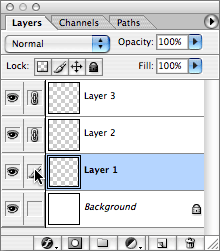 To unlink a single layer from the group -- without disturbing the rest of the linked layers, just option-click the little brush icon of the selected layer (the same spot where the chain link icon shows up). This will unlink only the selected layer, leaving the others still linked. Now you can move that selected layer independently, relinking it later if you wish (I'm assuming this is alt-click for Windows users).
I can't tell you how excited I was to accidentally discover this. Many of you may be reading, thinking, "geez, that's the first tip I learned". And because of that, I'm sure there are hundreds more waiting to be discovered. Maybe it'll be years before I find them all, or maybe I should start reading manuals. In either case, I thought I'd share this one for all my fellow non-manual-reading bretheren.